S Tier, Explained: Where Tier Lists Came From and Why Ranking in Tiers Works
The tier list escaped the fighting-game community the way all the best formats escape: it turned out to work for everything. Snacks, movies, programming languages — anything rankable now gets dragged into rows labeled S through F. But the format has real history and a real reason it beats star ratings. Both are worth knowing before you publish your next one from the tier list maker.
Open the Tier List Maker →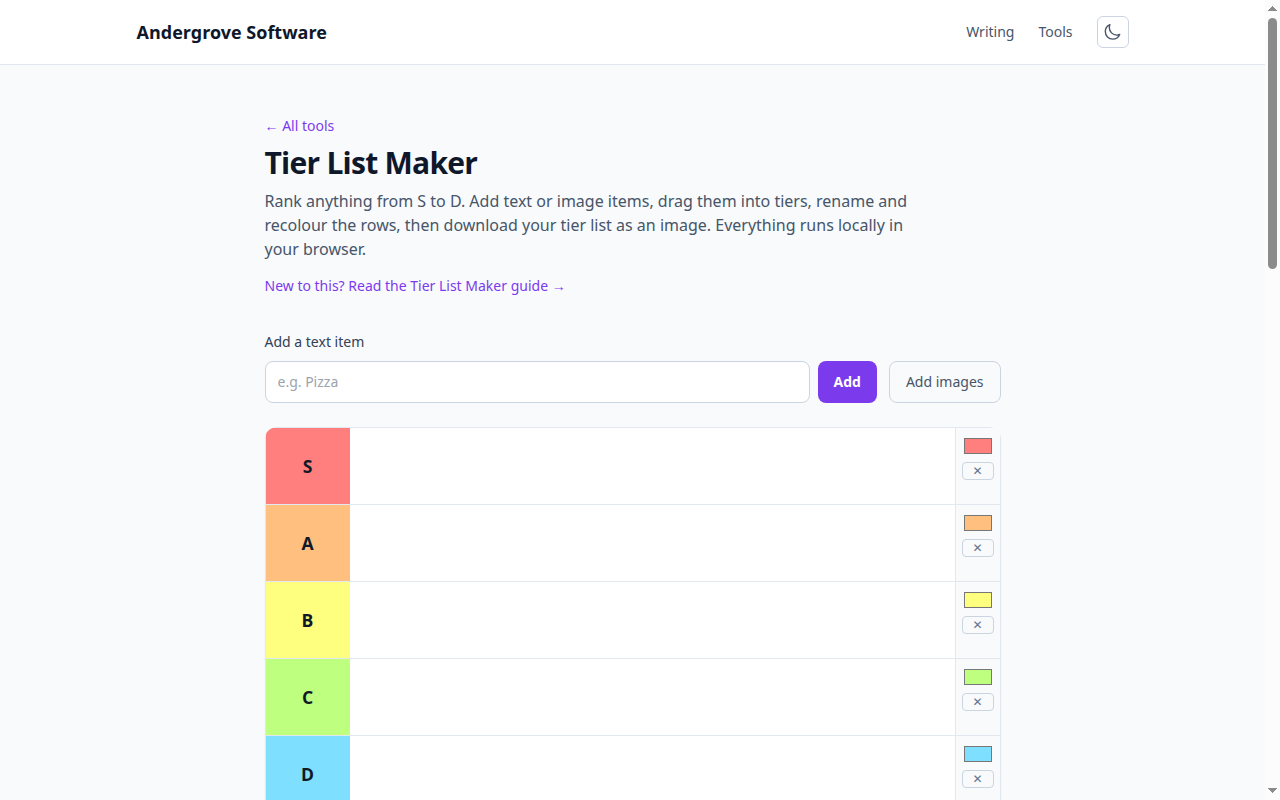
Why "S"? The grade above the grades
The letter scale with S on top comes from Japan, where games and arcades have long graded performance S-A-B-C — the S conventionally read as special or superior: the grade you get for exceeding the scale, not merely topping it. Japanese action games popularized the ranking screen (some pushed further with SS and SSS), and imported grading screens carried the convention west. That’s the quiet semantic difference from an American report card: A means excellent; S means beyond category — which is exactly the distinction a good tier list preserves. If everything you love is in S, you’ve just built an A tier with extra steps.
From matchup charts to meme format
Modern tier lists grew out of fighting-game strategy: communities around games like Street Fighter and Super Smash Bros. aggregated character matchup data and tournament results into charts of who was viable at high-level play — contentious, evidence-based documents that still shape which characters pros invest in. The format’s leap into general culture came when drag-and-drop tier-list sites made the template effortless around 2019, and the meme economy discovered that a grid of opinions is perfectly built for arguments in the comments. Both traditions are alive: one ranks by win rates, the other by vibes, and the grid doesn’t care.
Why tiers beat scores
Tiers work because of two honest admissions about human judgment. First, we compare far better than we measure: "is X better than Y?" gets consistent answers where "is X a 7 or an 8?" gets noise — the tier format only ever asks the comparison question. Second, most differences don’t matter: within a tier, order is explicitly meaningless, which frees you from fake precision (a 100-point scale implies you can distinguish 73 from 74; you can’t). A tier list is a sorting algorithm tuned to the actual resolution of opinion — a handful of buckets, sharp boundaries, no decimals. That’s also why it sparks better debate: disagreements are about boundaries, the only place a real decision was made.
Running a tier-list session that’s actually fun
The format shines as a group activity — icebreakers, team retros ("rank this quarter’s launches"), podcast segments — with a few rules of craft. Announce the criterion first (best to play, or best to watch? A list that never settles this argues about two lists at once). Place items one at a time, out loud — the reasoning is the content; the finished grid is just its receipt. Force spread: an empty F tier means the criterion was too soft, so either sharpen it or shrink the item pool. And screenshot the result — half the fun is the rematch a year later against your own old takes. The tier list maker handles custom tiers, images and export, entirely in your browser.
Ready to try it? Open the Tier List Maker →