How to Make a Professional Invoice (Free PDF, No Signup)
Every "free invoice generator" on the first page of search results wants something for the favour: an account, a watermark, your client list in their database, or a nag to upgrade to their accounting suite. Producing a clean PDF invoice does not require any of that. This guide walks through making one properly — and what to put on it so it gets paid.
Open the Invoice Generator →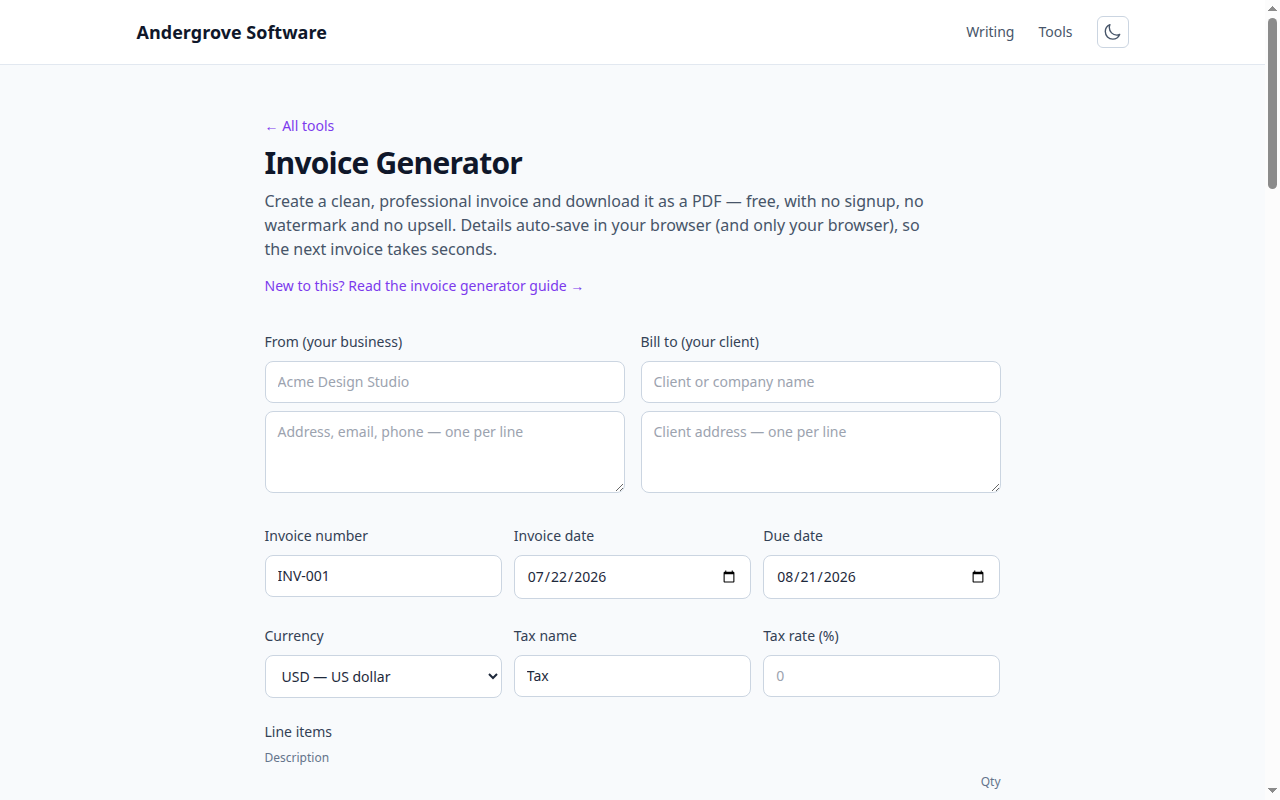
What the invoice generator does
The Invoice Generator is a form and a live preview: your business details, the client, dates and numbering, line items with quantity and unit price, an optional tax line with your own label (Tax, GST, VAT…), and notes for payment details. It formats amounts in nine currencies, shows the finished invoice as you type, and produces a clean A4 PDF — no watermark, no "made with" footer — or prints directly.
How do you make an invoice?
Fill in the form top to bottom: who you are, who you are billing, the invoice number and dates, then one line item per product or block of work. Add a tax rate if you charge one, put your bank or payment details in the notes, and press Download PDF. The file is named after the invoice number (invoice-INV-042.pdf), which keeps a folder of invoices sortable.
Two habits that pay off:
- Number invoices sequentially and never reuse a number — accountants, auditors and tax authorities all assume a gapless-ish, unique sequence. A simple scheme like
INV-2026-041scales fine. - Always set an explicit due date. "Net 30" alone makes the client do date math; "Due: 21 Aug 2026" gets paid sooner. The tool defaults the due date to 30 days out — change it to match your terms.
What should an invoice include?
A complete invoice answers four questions without a follow-up email: who is billing whom, for what, for how much, and how to pay. Concretely:
- The word Invoice and a unique invoice number
- Issue date and due date
- Your business name and contact details (plus tax/ABN/VAT number where applicable — the notes field or your details block both work)
- The client's name and address
- Itemised lines — description, quantity, unit price, amount
- Subtotal, tax shown separately, and the total
- Payment details and terms — bank account, reference to use, accepted methods
The reasoning behind each — and the mistakes that delay payment — are covered in How to write an invoice.
Handling tax: GST, VAT and sales tax
The tax line is deliberately generic: name it whatever your jurisdiction calls it and set the rate — 10% GST in Australia, 20% VAT in the UK, a US state sales-tax rate, or leave it at zero if you don't charge tax. The subtotal, tax amount and total are always shown as separate lines, which is what business customers need in order to claim the tax back. What you must charge is a question for your accountant, not an invoice tool.
Where does your data go?
Nowhere. This is the part worth being precise about, because invoices contain a complete picture of your business — who your clients are and what you charge them. The form auto-saves to your browser's local storage on your device, so returning to the page restores your last invoice; nothing is transmitted, and Clear & start over deletes the saved copy. The PDF itself is assembled by a library running in the page. You can disconnect from the internet after loading and everything still works.
PDF download vs. printing
Download PDF produces the file you attach to an email — the layout is generated directly, so it is identical on every machine. Print uses your browser's print dialog and hides everything except the invoice, which is also the quick way to "Save as PDF" with your browser's own engine if you prefer its output. For emailing invoices, the downloaded PDF is the one to use.
Ready to try it? Open the Invoice Generator →