How to Merge and Split PDF Files (Free and Private)
Merging PDFs is one of those tasks that should be trivial and somehow never is: the built-in tools hide it, and the top search results want an upload, an account, or a subscription before they will glue two documents together. This guide shows how to do all of it — merge, reorder, extract, split — in under a minute, without your files leaving your machine.
Open the PDF Merger & Splitter →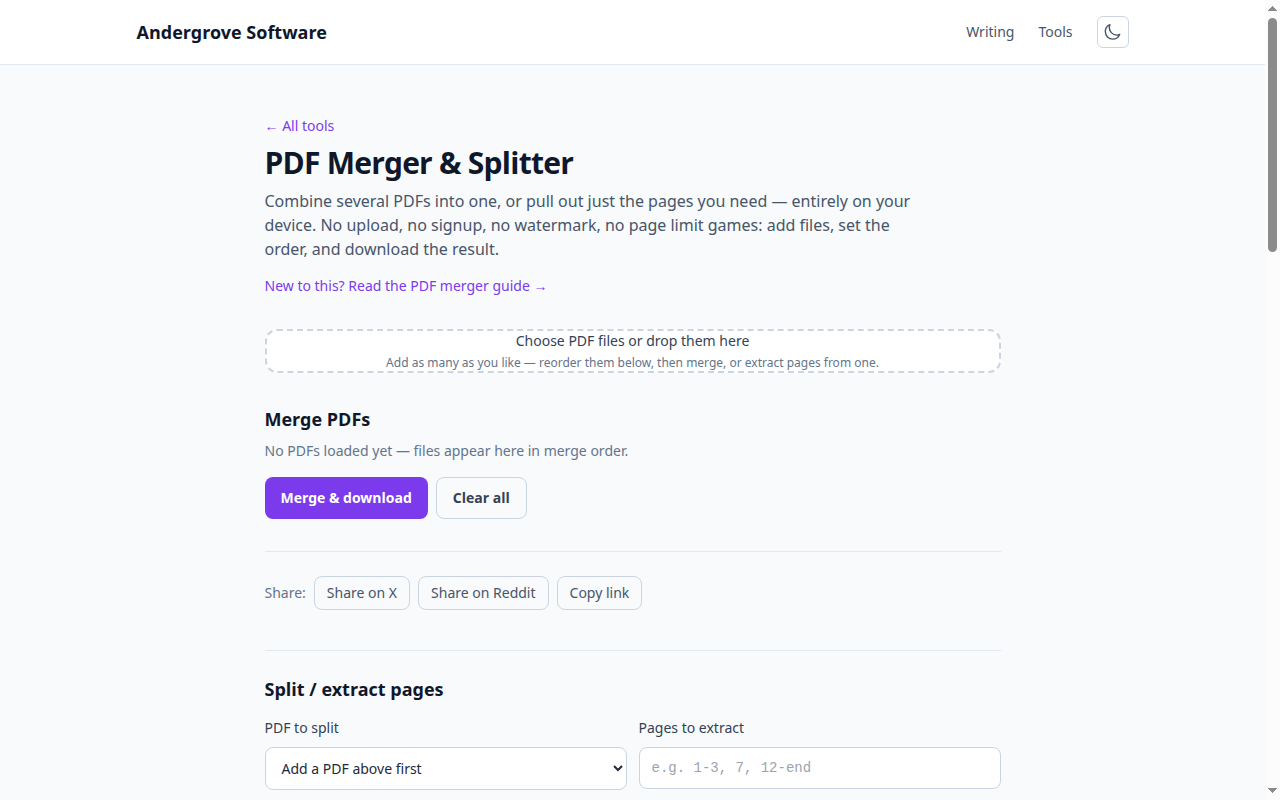
What the PDF merger does
The PDF Merger & Splitter does three jobs: it combines any number of PDFs into a single file, it extracts a set of pages from one PDF into a new document, and it splits a PDF into one file per page. All three are pure page-copying operations — no re-rendering, no quality loss, and no watermark — performed by an open-source PDF library running in your browser.
How do you merge PDF files into one?
Add your PDFs to the tool, arrange them with the up and down buttons, and press Merge & download — a single merged.pdf containing every page, in list order, downloads straight away. That is the whole process: no upload step, no email address, no "your file is ready" page.
A few details worth knowing:
- Order is the list order. The file at the top of the list supplies the first pages. Reorder before merging, not after.
- You can add files in batches. Pick three files, then drop in two more — the tool appends them to the list.
- Each file's page count is shown next to its name, so you can sanity-check that the 12-page contract really has 12 pages before you send the merged result anywhere.
How do you extract pages from a PDF?
Choose the source file under PDF to split, type a page expression, and press Extract to a new PDF. The expression is a comma-separated list of pages and ranges, extracted in the order you write them:
| Expression | Result |
|---|---|
5 | Just page 5 |
1-3 | Pages 1, 2 and 3 |
1-3, 7 | Pages 1–3, then page 7 |
12-end | Page 12 through the last page |
5, 1-4 | Page 5 first, then 1–4 — ranges keep the order you write |
Because ranges are honoured in written order (and a page may appear more than once), extraction doubles as a lightweight page re-arranger: to move an appendix to the front of a 10-page file, extract 9-10, 1-8.
Splitting a PDF into individual pages
Press Split into one file per page and the tool produces a separate single-page PDF for every page, listed as download links so you grab only the ones you need rather than being buried in automatic downloads. It is capped at 200 pages — beyond that, a range extract is almost always what you actually want.
Why merge PDFs in the browser instead of uploading them?
PDFs are disproportionately sensitive files — contracts, bank statements, medical records, signed forms. The typical online merger uploads your document to its server, merges it there, and keeps the file for a retention period described (if at all) deep in a privacy policy. You are trusting an anonymous service with exactly the documents you would shred rather than bin.
This tool takes the other approach: the PDF library itself runs on your device, so the file bytes never cross the network. You can verify that claim — load the page, disconnect from the internet, and merging still works. We wrote more about how to evaluate any online file tool in Are online PDF tools safe?
Limits and troubleshooting
- Password-protected PDFs are rejected with a clear message. Decrypt the file first (open it with its password and re-save without one); a merger silently baking an encrypted file into a new document would be worse.
- Very large files are bounded by your device's memory, since everything happens locally. Hundred-megabyte scans work on a typical laptop; a phone may struggle sooner.
- Interactive form fields may flatten. Page copying preserves content and layout faithfully, but complex AcroForm fields spanning documents can lose interactivity — check the merged file before distributing a fillable form.
- The output has no watermark and no page limit. If a "free" PDF tool ever gives you a stamped or truncated file, that is a product decision, not a technical necessity.
Ready to try it? Open the PDF Merger & Splitter →